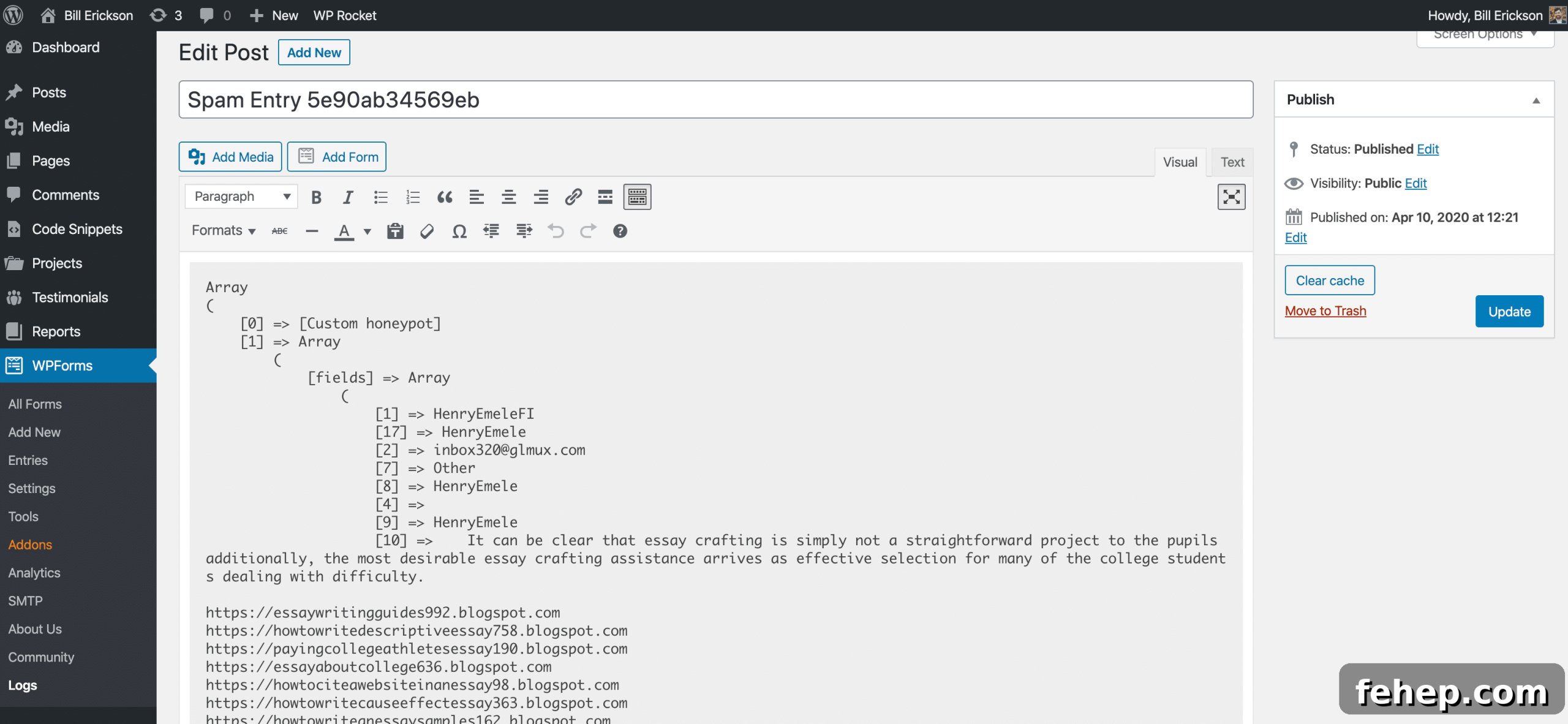
A custom honeypot is a simple, reliable way to reduce spam on your forms. If a hidden field is filled in, the submission is almost certainly coming from an automated bot.
WPForms includes a built-in honeypot, but because the plugin is so widely used, many bots now detect and skip the default field named hp.
A custom honeypot is unique to your form and will appear like any other field to a bot. Using a tailored honeypot can dramatically cut down on spam; in many cases it will nearly eliminate spam on a contact form.
Follow these steps to add a custom honeypot to your WPForms form.
1. Pick a unique CSS class name to identify the honeypot field. Make it site-specific (avoid names like honeypot). For example, if you choose my-fancy-field, add this to your theme stylesheet to hide the field:
.wpforms-container .my-fancy-field {
	display: none;
}
2. Add a field to your form and assign it the custom CSS class you picked.
3. Add the following PHP to your theme’s functions.php file or to a site-specific plugin. This checks the field at submission time; if it contains any value, the entry is marked as spam and WPForms will log the reason as “[Custom honeypot]”. Update the $honeypot_class variable to match your custom class name.
/**
* WPForms Custom Honeypot
*
* @param string $honeypot Honeypot string, empty if not spam
* @param array $fields Form fields
* @param array $entry Submitted entry data
* @param array $form_data Form configuration
*/
function be_wpforms_custom_honeypot( $honeypot, $fields, $entry, $form_data ) {
	$honeypot_class = 'my-fancy-field';

	$honey_field = false;
	foreach ( $form_data['fields'] as $form_field ) {
		if ( false !== strpos( $form_field['css'], $honeypot_class ) ) {
			$honey_field = absint( $form_field['id'] );
		}
	}

	if ( ! empty( $entry['fields'][ $honey_field ] ) ) {
		$honeypot = 'Custom honeypot';
	}

	return $honeypot;
}
add_filter( 'wpforms_process_honeypot', 'be_wpforms_custom_honeypot', 10, 4 );
Logging
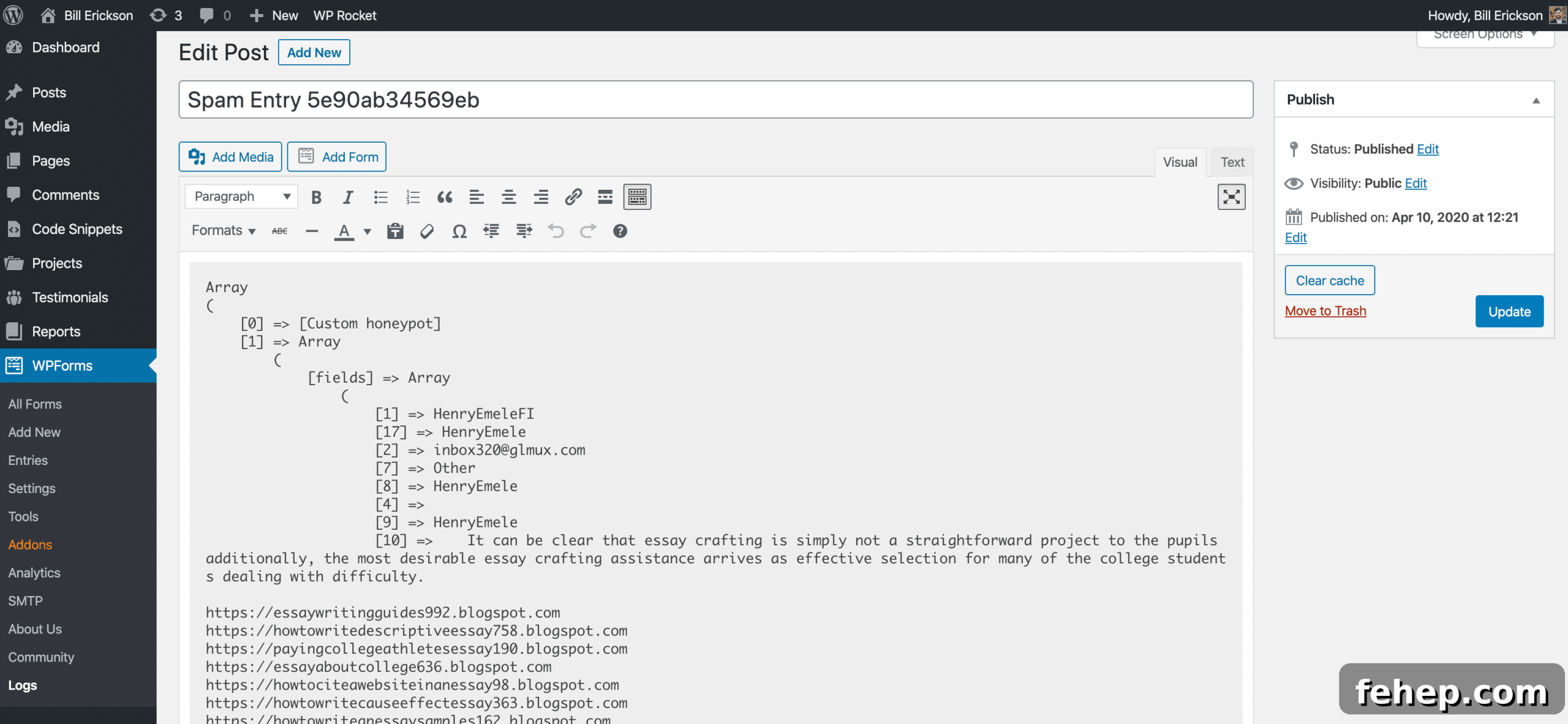
Enabling logging helps you verify the honeypot is working. When a spam entry is detected, WPForms will create a log entry in the wpforms_log post type that includes the honeypot message and the full submission.
Only log spam temporarily to avoid filling your database with unnecessary records.
To enable spam logging, add this snippet:
/**
 * Enable logging of spam
 */
add_action( 'init', function() {
	$debug = get_option( 'wpforms_logging' );
	if ( empty( $debug ) || ! in_array( 'spam', $debug, true ) ) {
		update_option( 'wpforms_logging', array( 'spam' ) );
	}
} );
Make the WPForms Log post type visible in the admin so you can review entries in WPForms > Logs with this code:
/**
 * Make log visible
 */
add_filter( 'wpforms_log_cpt', function( $args ) {
	$args['show_ui'] = true;
	unset( $args['capability_type'] );
	return $args;
} );
With a unique CSS class and a small filter, a custom honeypot provides an unobtrusive, effective layer of protection against automated spam submissions. Remember to monitor logs briefly after implementation to confirm the honeypot is catching spam, then disable logging when you no longer need the records.